Set up Slack file pickup
This guide is for Integration Hub team members setting up and testing file collection through the portal. The pattern is a draft: check the configuration and complete live access tests before offering it to a customer.
Before you start
Agree the source identity and prefix, recipient group and Slack channel. Confirm the group is already assigned to the Transfer web app in the target environment. App access alone does not grant access to the pickup folder.
Check that the AWS account is connected to the appropriate Slack workspace through Amazon Q Developer in chat applications. This connection requires a one-time Slack authorisation; Terraform cannot complete it. Use an authorised test environment and synthetic files for the checks below.
Configure a recipient
- Add the recipient to the relevant source prefix in
modules/file-dispatch-configuration/locals-<environment>.tf. Follow the module’s Slack pickup configuration. Setnotifications.slackto the same stable recipient ID aspickup.recipient_id, and provide the authorised group IDs, Slack channel ID and workspace ID inpickup. Preserve any existing action and other notification settings. - Review and apply a fresh plan for the root file-transfer configuration,
then review and apply the
pull-from-presigned-urlcomponent through the approved platform workflow. Check that each read grant is limited to the intended recipient directory. - Check the matching dispatch secret through the approved privileged access
route. Terraform creates its initial value but ignores later changes. If
the secret already exists, update it as needed so
notifications.slackmatches the recipient ID, preserving the rest of the configuration. Do not put secret values in source control, logs or tickets. - Upload a new synthetic file through the configured source. Existing events refer to their original dispatch-secret version, so changing the configuration does not update an earlier request.
The pickup component publishes to a recipient-specific SNS topic. Amazon Q Developer in chat applications sends the notification to Slack; this setup does not use an incoming webhook.
Check the result
Confirm the copy exists and that the Slack message arrives in the intended channel. The message gives a portal link, file name and URL-encoded pickup path; it does not contain the bucket name or a direct file link. Sign in, find the file and compare the download with the original synthetic file. SNS accepting a notification does not by itself prove it reached Slack.
Before customer use, also check that:
- an authorised group member can find and download the file
- another web-app user cannot list or download it, even with the Slack link
- the pickup grant does not allow upload or deletion, or access to another recipient’s directory without a separate grant
- a small file and an approved test file larger than 5 GB download intact
- a fresh download works after an old download request exceeds five minutes; investigate any portal or retry problems
- removing group access behaves as expected, including any delay for already-issued credentials
- quarantined files do not produce pickup notifications
The pickup bucket has a seven-day lifecycle rule. Removal is asynchronous and does not enforce an exact access or deletion deadline. Agree any strict retention requirements before adopting this pattern.
If a notification is missing
Check the file reached the clean bucket and that the most-specific dispatch
configuration requested Slack pickup for the intended recipient. Then check
the notifier logs, processing queue, dead-letter queues, recipient SNS topic
and Slack integration. The notifier records published when SNS accepts the
message; check Slack separately.
Events more than 12 hours old are skipped. A retry normally reuses a saved copy and does not extend its collection window, but an uncertain publication can result in a duplicate notification. Do not assume a timed-out operation had no effect. Preserve the evidence and escalate if the copy or publication outcome is ambiguous; use the recovery procedure for the affected component rather than replaying a message blindly.
Architecture
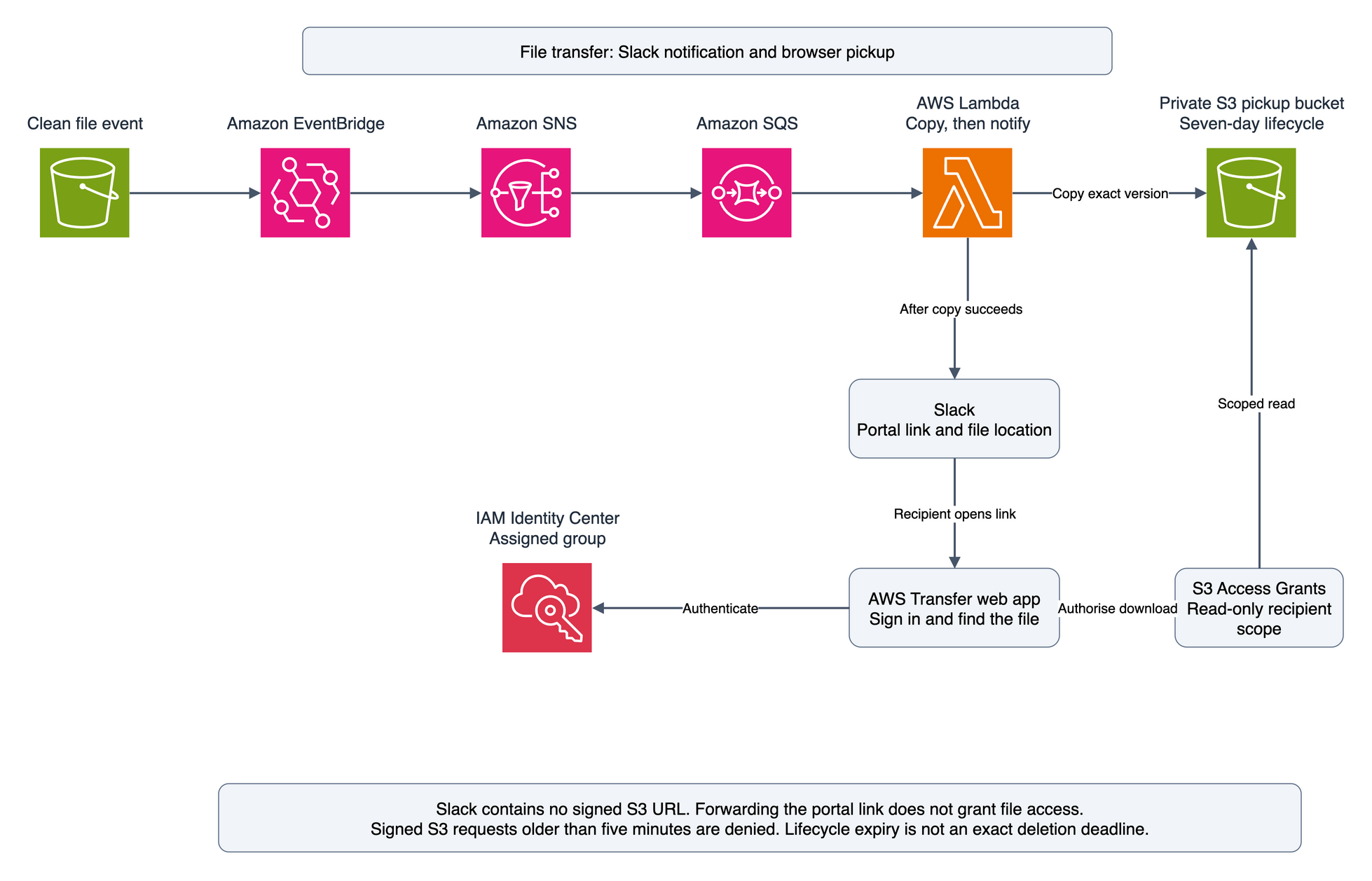
The diagram simplifies the notification path: after the copy, the notifier publishes to SNS and Amazon Q Developer in chat applications delivers the Slack message. The pickup component owns this copy and bucket; it does not use the separate hosted S3 pickup executor.
Download the editable draw.io diagram.
Run the unit tests
From the modernisation-platform-environments checkout, with the notifier’s
Python test dependencies installed:
PYTHONPATH=terraform/environments/integration-hub-file-transfer/pull-from-presigned-url/lambda/notifier \
  python3 -m unittest discover -s terraform/environments/integration-hub-file-transfer/pull-from-presigned-url/lambda/notifier/tests -v
Unit tests do not establish live portal, group-isolation or Slack behaviour. The shared Python testing approach is a proposal, not an available workflow.